![Logo White and Orange.png]](https://support.accessagility.com/hs-fs/hubfs/Logo%20White%20and%20Orange.png?height=40&name=Logo%20White%20and%20Orange.png)
- Log in to your Optifi account at app.optifi.com. In the top right corner, click on your email address to access the drop-down menu.
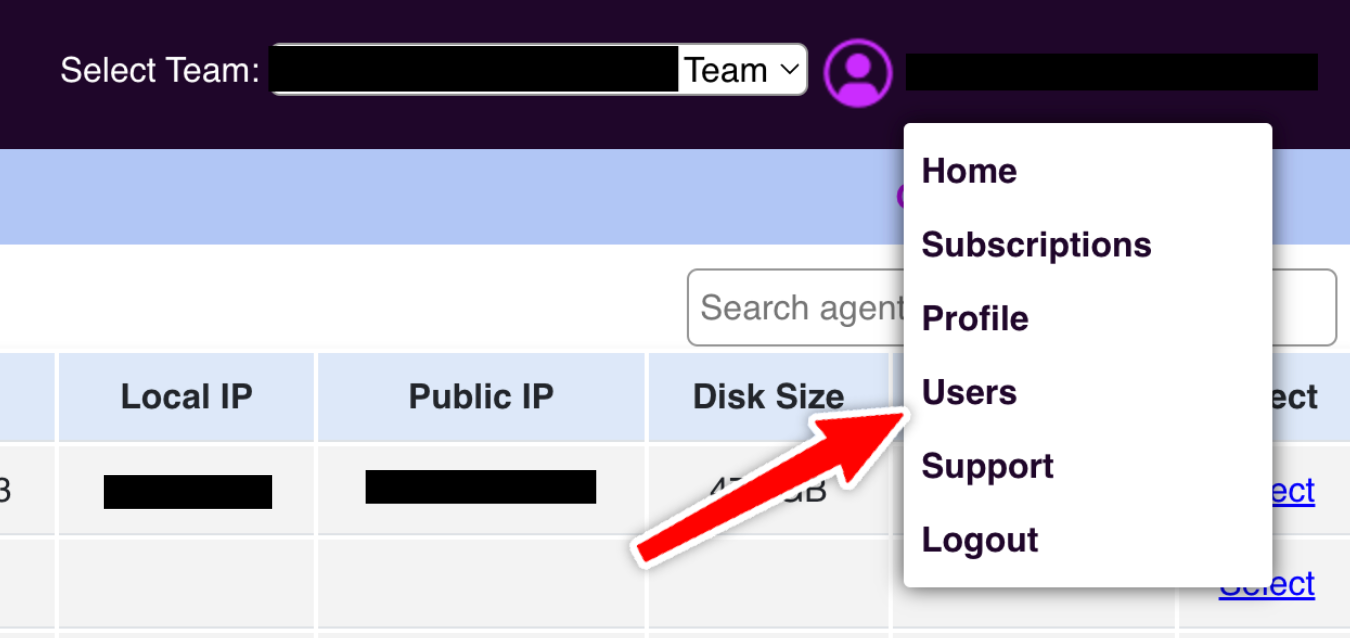
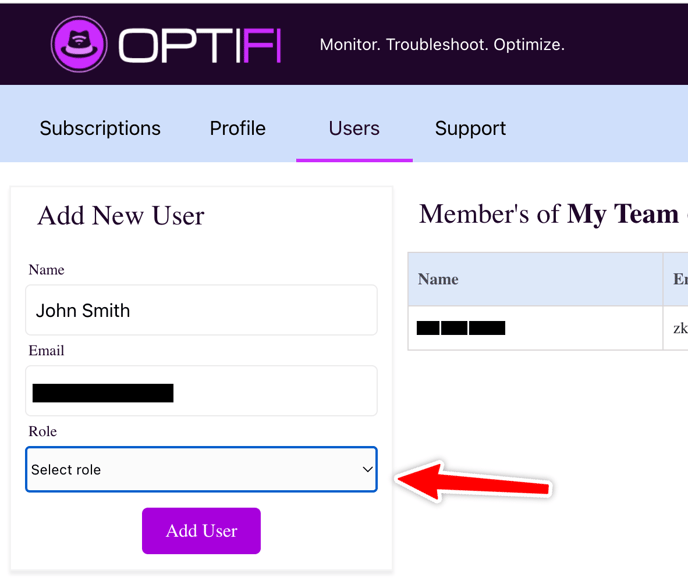
- Enter a name to describe the new team member (e.g., person's name, organization).
- Enter their email address.
- Select role
- User: Can access all agents and actions.
- Admin: Can access all agents and actions, and also manage other team members.
- Click "Add User" to save the settings.
- Note: They will not be notified automatically. Inform the new user that they can log in at app.optifi.com.
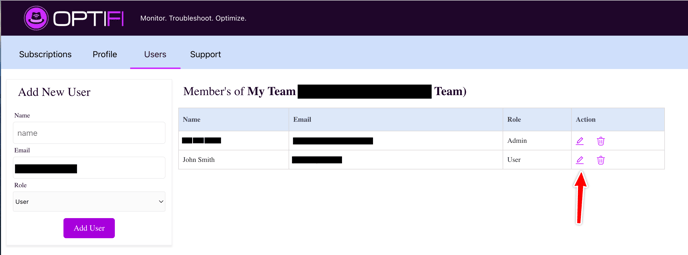
- Team members will be listed on this screen. You can edit their information or remove them from the team.
- Team members can confirm their access to the shared account by selecting the team from the dropdown menu after logging in.
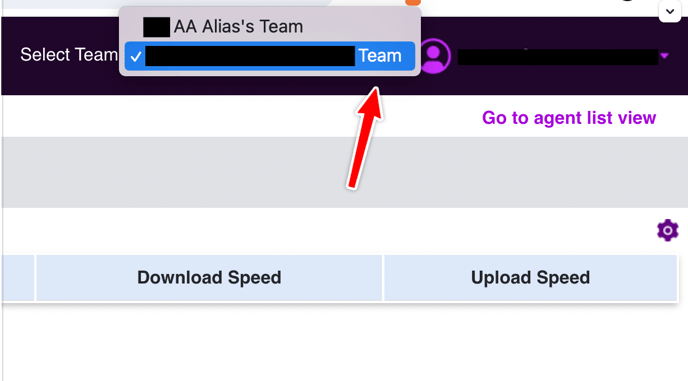
- After selecting the desired team, members will have access to all account actions as if the shared account were their own, based on their role as Admin or User.
Note: If they don't have their own subscription, a trial account will start upon logging in. The trial can be allowed to expire, and they will still retain access to the shared team account.